Set Up Your Google Business Profile
Follow the steps in order. Each step ends with a Done when line — make sure that is true before moving on.
Step 1 — Open Google Business Profile and Start Setup
-
Go to business.google.com, sign in with the same Google account you used for Search Console, and click
Manage now.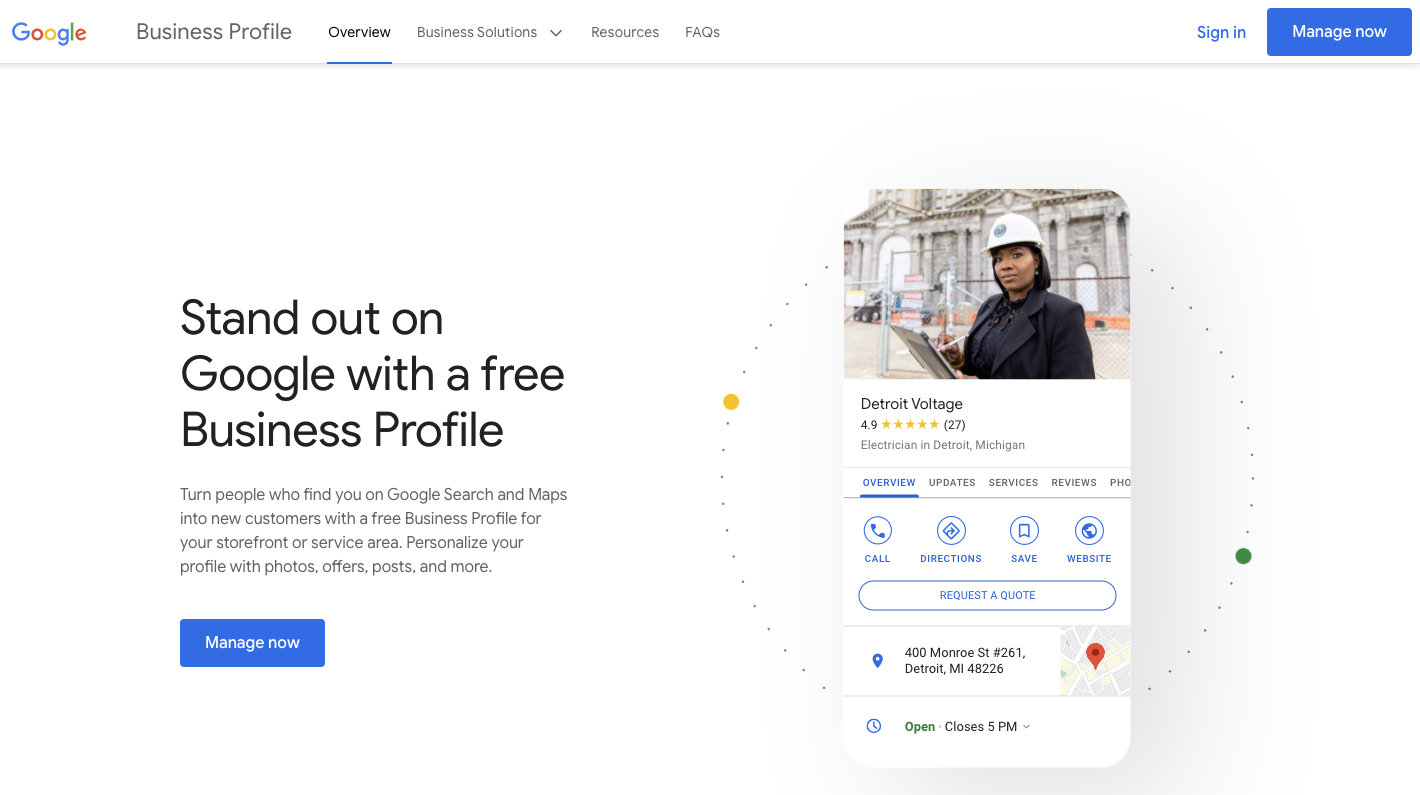
The landing page may look slightly different depending on whether you already have profiles on your account — look for the "Add your business to Google" or "Manage now" button. Google opens the Business Profile setup flow asking for your business name.
Step 2 — Enter Your Business Name and Category
-
Type your business name exactly as you want it to appear on Google, then choose the most accurate primary business category from the dropdown.
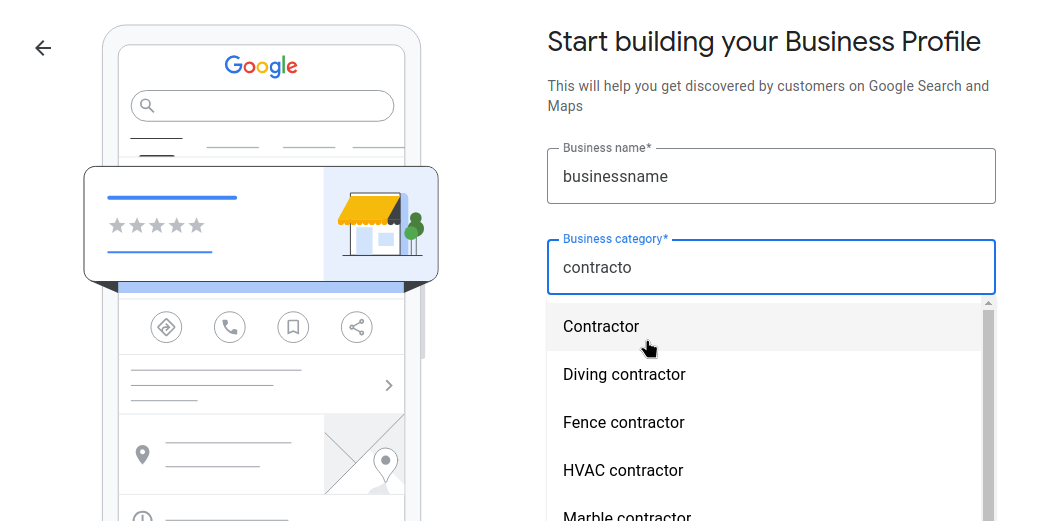
The category is important — it determines what searches your profile can appear in. Pick the most specific option that fits. You can add more categories later. If you are not sure which category fits best, think about how a customer would search for you. A plumber would choose "Plumber", not "Contractor" — be specific.
Your business name and a primary category are entered and you can continue to the next screen.
Step 3 — Select Your Business Type
-
Choose the options that describe how your business operates. You can select more than one if they both apply.
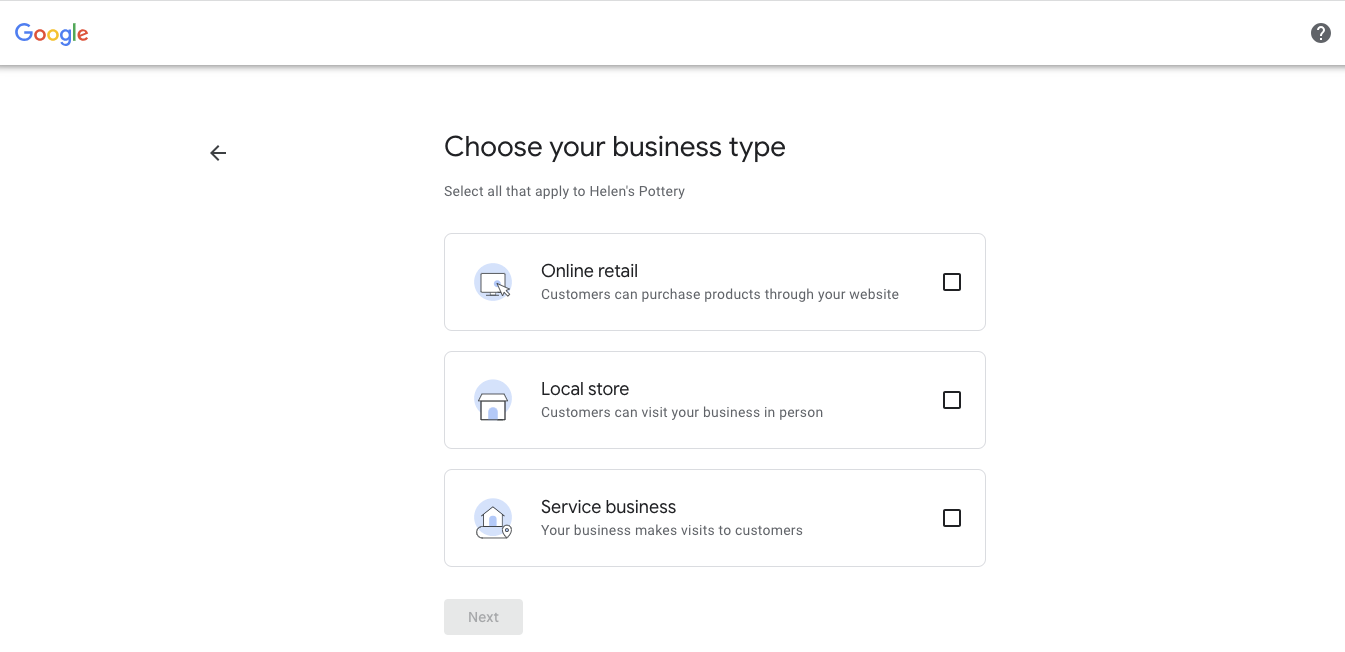
Only select options that are genuinely true about your business. Do not check extra boxes hoping it helps — it can hurt your profile if the information is inaccurate. Common options:
- Local store — you have a physical location customers can walk into.
- Service business — you travel to customers (electrician, cleaner, landscaper, etc.).
- Online retail — you sell products online and ship them.
The correct business type options are selected and you can move to the next screen.
Step 4 — Set Your Location or Service Area
-
When asked if customers can visit your location, answer honestly based on how your business works.
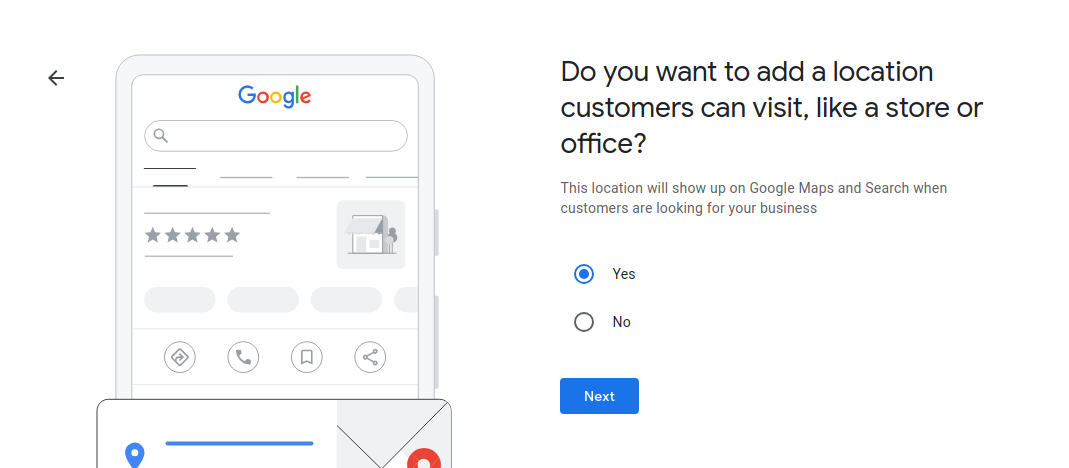
If you work out of your home and do not want your address published publicly, choose No here — you will add a service area instead. - Yes — you have a shop, office, or studio that customers can visit. You will enter a physical address on the next screen.
- No — you go to the customer (plumber, cleaner, contractor, mobile mechanic, etc.). No address will be shown publicly.
Your answer is selected and you can continue.
-
If you chose No (service area business), enter the cities, towns, or postal codes where you work.
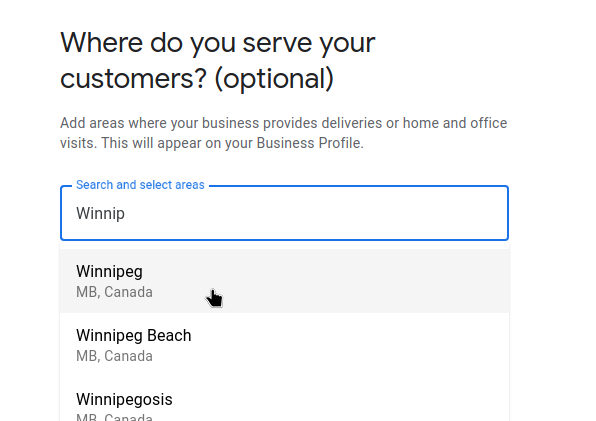
Type a city name and select it from the suggestions. Add as many areas as you genuinely serve. A good rule of thumb: only list areas where you can realistically show up and do the job within a normal working day. Stretching your service area to cover places you rarely go can hurt your profile's relevance in local search.
Your service area reflects the real places you can consistently serve customers.
Step 5 — Add Contact Details and Your Website
-
Enter your business phone number and your website URL. The website URL must match your domain exactly as you verified it in Google Search Console.
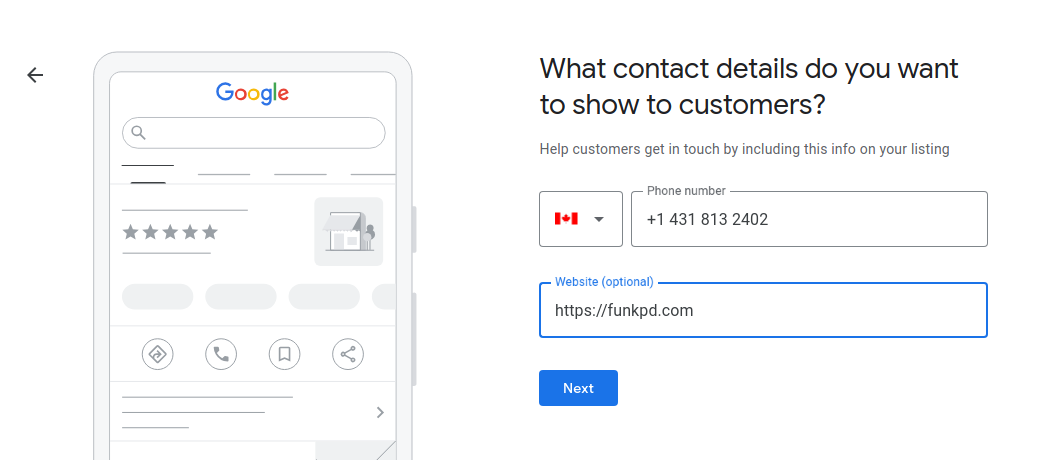
The website field is critical — if it does not exactly match the domain you verified in GSC, instant verification will not be offered. Use the same format, including or excluding www, exactly as it was verified. Examples of what "exactly matching" means:
- If GSC shows
example.com, enterhttps://example.comhere — notwww.example.com. - If GSC shows
www.example.com, usehttps://www.example.comhere.
Not sure what your GSC domain looks like? Open search.google.com/search-console in another tab — the domain is shown at the top of the property.
Your phone number is correct and the website field uses the exact same domain that is verified in Google Search Console.
- If GSC shows
- You are signed in with the same Google account used for Google Search Console.
- The website domain here exactly matches the domain verified in Google Search Console.
- Your business category is not one of Google's restricted types (most common business types are fine).
If all three are true, Google will offer instant verification on the next screen. If any one of them is off, it will not — see below for what to do.
Step 6 — Verify Your Business
-
On the verification screen, choose instant verification if Google offers it, or click
Get verifiedif that button appears.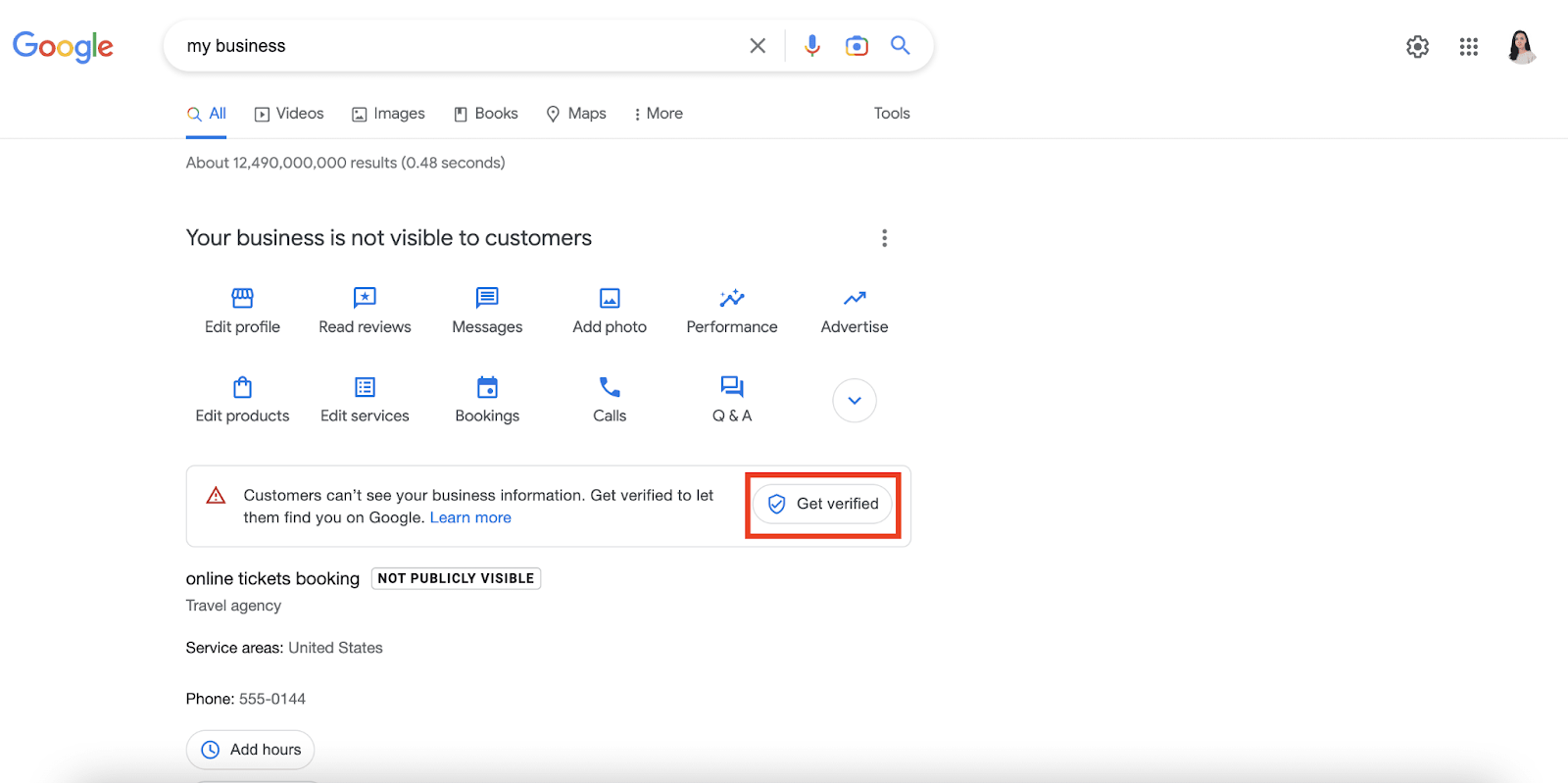
Instant verification may appear automatically or as a button. If you see it, use it — it saves days of waiting for a postcard to arrive in the mail. Google confirms your business profile is verified. You will see a success screen or be taken directly into your profile dashboard.
Stop here before trying any other verification method. Go back and check:
- Are you signed in with the exact same Google account you used for Google Search Console?
- Does the website URL you entered match the GSC domain exactly (including or excluding www)?
- Did you complete GSC verification fully — not just started it, but got the "verified owner" confirmation?
If you have checked all three and instant verification still does not appear, do not use the postcard option yet — email contact@funkpd.com with a screenshot of the verification screen and what account you are signed in with. The postcard takes 1–2 weeks and is the last resort.
Step 7 — Complete Your Profile
-
After verification, Google will walk you through additional profile fields. Fill in everything you can — the more complete your profile, the better it performs.
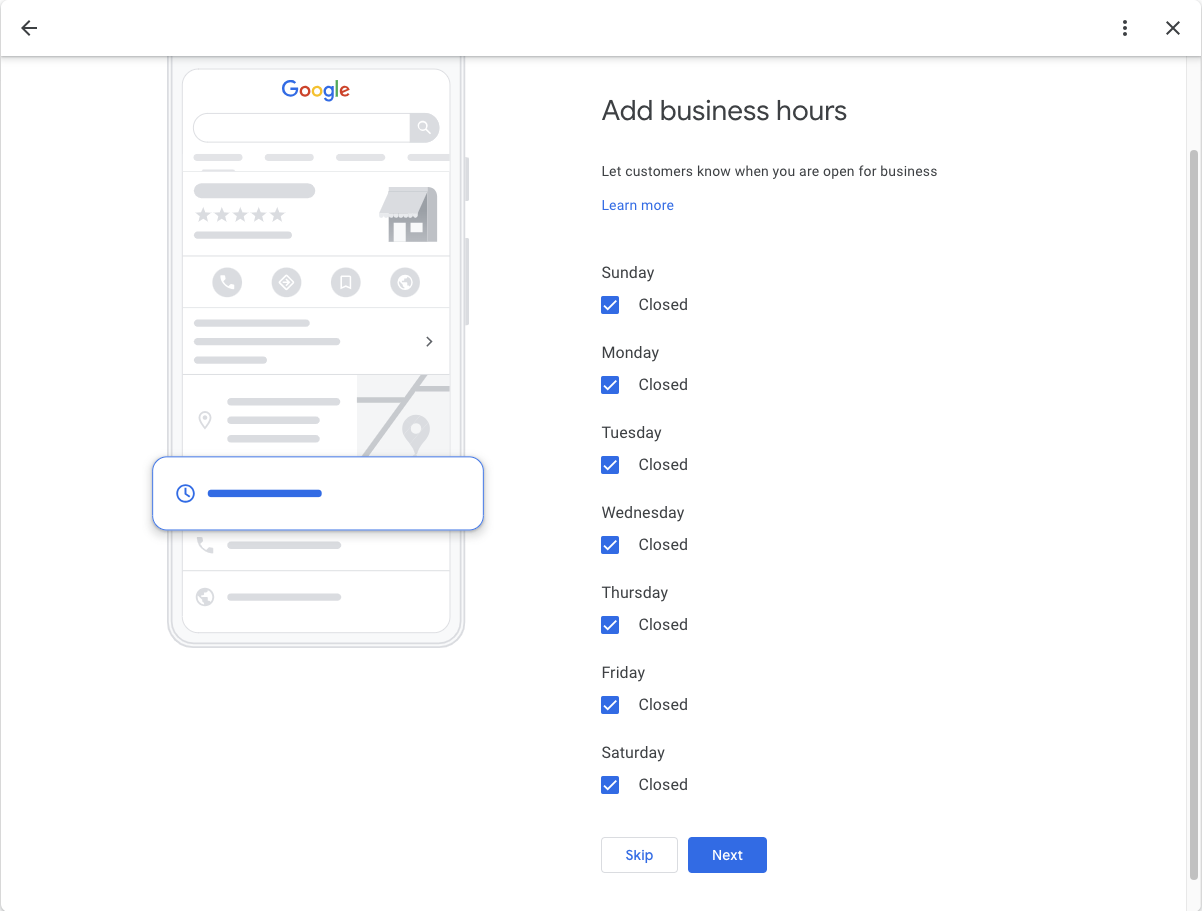
Business hours are one of the most important fields — customers look at these constantly. Fill them in accurately, including marking days you are closed. Common prompts you will see at this stage:
- Business hours — list the days and hours you are actually available. If you do not have set hours, set expectations that reflect reality (better to under-promise than over-promise).
- Business description — write 1–3 sentences about what you do and who you serve. Plain language is better than marketing speak.
- Photos — add at least a logo and one photo of your work or location. Profiles with photos get significantly more engagement than those without.
- Services or products — list what you offer. This helps Google understand your business better and can improve how often you show up in relevant searches.
If you see a prompt you do not understand or are not sure how to answer, it is safe to skip it for now. You can always add to your profile later from your Google Business Profile dashboard.
You have filled in business hours, a description, and at least one photo. The profile is live and visible on Google.
Email Nolan at contact@funkpd.com with a screenshot of what you are seeing and which step you are on.